LDPlayer is a good choice for people who want to play Android games on a PC. It helps run mobile apps on a bigger screen using keyboard and mouse. Most people use the Play Store to get apps, but it doesn’t always work for everyone. Some apps are not available in some places. Others might not work on your device. That’s where sideloading helps.
Sideloading means installing an app using an APK file. It lets you use games before they come out, try apps from other countries, or use special apps that are not on the Play Store. Learning how to sideload APKs the right way helps avoid errors and saves time. There are different ways to do it. Some are very simple. Others need more steps, especially for bigger games.
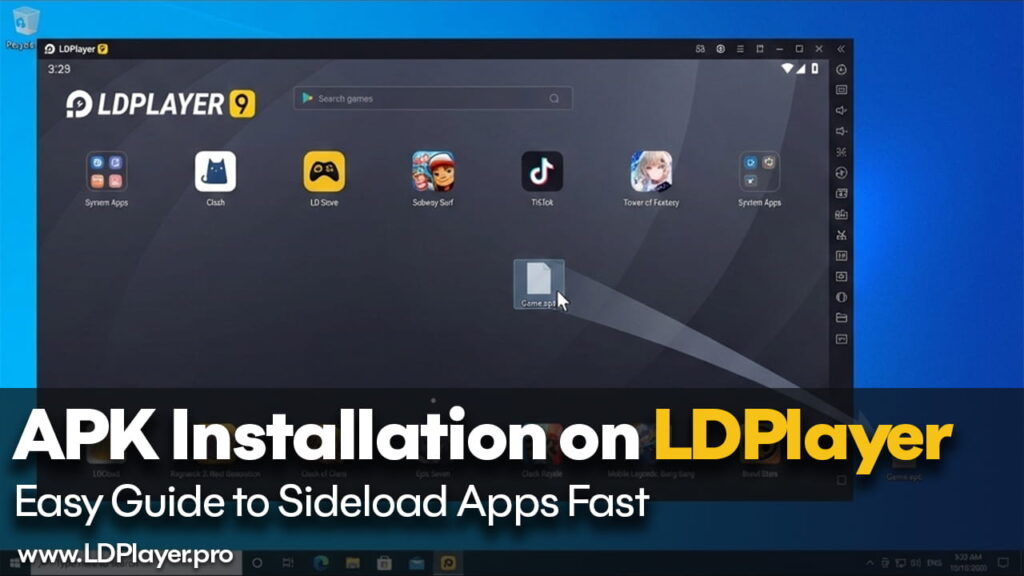
Method 1: The Quick Drag-and-Drop
Most small apps come as a single APK file. These are easy to install using drag-and-drop.
First, find the APK file on your PC. It’s usually in the Downloads folder.
Then open LDPlayer. Wait for it to fully load.
Now drag the APK file with your mouse and drop it into the LDPlayer window.
LDPlayer will start installing the app right away. A message will appear that says “Installation Succeeded.”
But sometimes, this method doesn’t work. For example, the file may open as an image or text file instead of installing. That usually means something is wrong with how Windows handles the file. Or the APK file might be broken. In those cases, try the second method instead.
Method 2: Using LDPlayer’s APK Installer
LDPlayer also has its own tool for installing APKs. This helps when drag-and-drop doesn’t work. It’s also good for installing many apps at once.
To use this method, look at the right side of the LDPlayer screen. Click the icon that says “APK.” You can also press Ctrl + 3 to open it quickly.
This opens a file window. Go to where the APK file is saved.
Click on the APK file, then click “Open.” LDPlayer will install it right away.
This method works even if Windows blocks drag-and-drop. It’s also better for some tricky apps that don’t install easily.
Installing XAPK and OBB Files
Some large games like PUBG Mobile or Genshin Impact don’t come in one simple APK file. These games need more data to work. The extra data is stored in OBB files. Sometimes the whole thing is packed into one XAPK file.
If you install only the APK without the OBB data, the game won’t work. It might show a black screen or an error that says “Download failed.”
To install these games properly, use the LDStore app that comes with LDPlayer.
Open LDStore from the home screen.
Look for a menu or three dots icon. Find the option that says “Install XAPK” or something similar.
Choose the XAPK file from your PC. LDStore will install the app and put the OBB files in the right place. This way, the game can load without any problem.
Common APK Installation Problems
Even if everything seems fine, errors can still happen during installation. Here are some of the common ones and how to fix them.
“Failed to Parse the Package”
This means LDPlayer could not read the APK file. There are two main reasons this happens.
The first reason is a broken download. Maybe the internet went out, or the file didn’t save properly. To fix this, just download the file again from a trusted site like APKPure or APKMirror.
The second reason is the app might need a newer Android version. Some apps only run on Android 11 or later. LDPlayer 5 uses Android 7, so it won’t work with those apps.
To fix this, open LDMultiPlayer. Make a new LDPlayer instance that uses Android 9 or above.
App Crashes Right After Opening
Sometimes the app installs, but it closes right away when you open it. Here’s what can help.
First, try clearing the app’s cache. Go to System Apps > Settings > Apps. Find the app and tap “Clear Cache.”
Second, turn on high frame rate mode. Some apps need 120 FPS to run smoothly. You can do this by going to LDPlayer Settings > Game Settings.
Last, check if you are using the correct version of the app. Some APKs are made for 64-bit Android. If your LDPlayer is 32-bit, the app won’t work. You’ll need to install a 32-bit version of the app instead.
How to Stay Safe While Sideloading
Sideloading is helpful, but it also skips Google Play Protect. That means users must be careful.
Only get APK files from trusted sites. Good sites include APKPure, QooApp, and APKMirror. Don’t download apps from random websites or message boards.
Also, scan APK files with VirusTotal before installing. This tool checks for viruses or bad software.
It’s smart to use a separate LDPlayer instance for testing unknown apps. That keeps your main apps and Google account safe in case something goes wrong.
Final Thoughts
Sideloading on LDPlayer opens a lot of doors. You can try early versions of games, access apps from other countries, or use tools that are not on the Play Store. The drag-and-drop method is great for simple installs. The built-in installer helps when files are more complicated. And using LDStore makes it easy to install big games with OBB files.
Understanding these methods makes the process smooth and quick. It also helps avoid common problems like errors or app crashes. With some care and good habits, sideloading can be safe and easy. LDPlayer turns your PC into a strong Android gaming setup with more freedom and control.