The idea of jumping from one place to another without leaving the chair used to sound like a dream. But now, LDPlayer makes it real. This Android emulator has a tool called GPS Simulation, or “Virtual Location,” that helps people go anywhere on the map. This is great for gamers, app developers, and anyone who needs to test or use location-based features.
It’s true that this tool makes a big difference. People use it for many reasons. Some want to unlock special game events. Others want to check how an app works in a different country. Let’s take a deeper look into how this GPS Simulation works, how to set it up, and how to avoid problems.
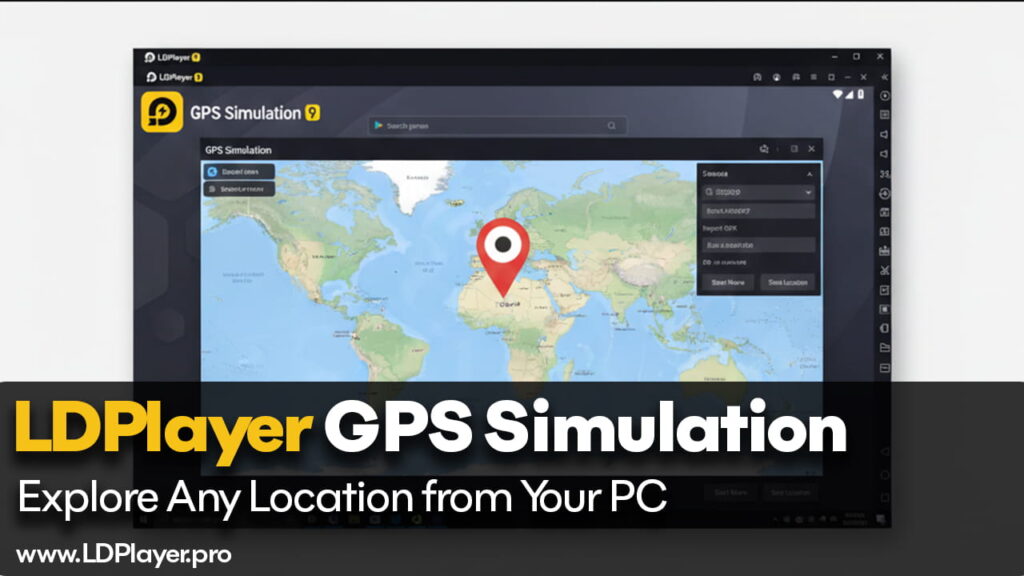
What Is GPS Simulation in LDPlayer?
GPS Simulation in LDPlayer lets users change their location on a map using fake latitude and longitude numbers. This doesn’t change where the computer is. But inside LDPlayer, it tells apps that the device is in a new place. For example, a game might think the player is in Tokyo, even if they are sitting in New York.
LDPlayer talks to the Android system inside the emulator. It sends this fake location to apps that use GPS. This way, apps think the device has moved. The user can pick any spot in the world. That means it becomes easy to check things from different places without needing to travel.
Why People Use the Virtual Location Tool
This feature is useful for many tasks. Here are some clear reasons why people use it:
Gaming
Many mobile games, like Pokémon GO or Monster Hunter Now, offer special rewards or events in certain countries or cities. With this GPS Simulation tool, players can go to these places from home. It helps them play more and unlock better rewards.
Social Media
People also use this feature to check local trends or post from famous landmarks. They can “check in” at the Eiffel Tower or Tokyo Tower even if they are far away. This works for apps that rely on location tags or local news.
App Testing
App makers use this tool to test how their app works in different areas. For example, they might want to know if weather updates, traffic alerts, or local ads show up correctly. By simulating a location, they don’t need to leave their office.
How to Set Up a Fake Location in LDPlayer
Setting a fake location in LDPlayer is not hard. But each step needs to be followed carefully. Here’s how to do it:
- Open the Virtual Location Tool
On the right side of LDPlayer, there is a bar with icons. Click the icon that looks like a pin on a map. - Choose Your Place
A map will open. You can type a place name or coordinate in the search box. Or just click anywhere on the map. - Click “Locate Here”
After picking the spot, press the “Locate Here” button to confirm it. - Save the Settings
It’s very important to press “Save.” If not, the app may forget the new location during the session. - Turn On High Accuracy Mode
Inside the Android settings of LDPlayer, turn on the “High Accuracy” location setting. This makes the fake GPS more believable.
Tips to Avoid GPS Problems
Sometimes, if the GPS is not used correctly, apps might think something is wrong. They may reset the location or block the account. That’s why it’s good to know how to stay safe while using it.
Wait Before Moving Again
One mistake is teleporting too fast. For example, if someone logs in from Los Angeles, then jumps to Paris five minutes later, the app may flag the account. That’s because people can’t fly that fast. To stay safe, wait a long enough time between big moves.
Simulate Real Movement
LDPlayer lets users go further. You can simulate walking or biking by using keyboard controls with the GPS tool. This helps you move slowly across the map. That looks more real to the app, and it lowers the chance of being blocked.
Fixing Common GPS Problems
Sometimes, things go wrong. Even if the tool works well, users might see some issues. Here are the most common ones and how to fix them:
“GPS Signal Not Found”
This shows up if Google Maps is outdated inside LDPlayer. Another cause might be if “Mock Locations” is not turned on in the Developer Options. Update the app and turn on mock locations to fix this.
Map Does Not Load
If the map won’t show up, it could be a network issue. Try restarting LDPlayer. Also, go to LDPlayer settings and switch the network type from “Bridged” to “NAT.” That usually solves the problem.
Wrong Location on the Map
This happens when a VPN is turned on in the background. Turn off any VPN running on your computer. It might be getting in the way of the GPS tool.
LDPlayer vs. GPS Spoofing on Phones
Some people try to spoof GPS on their real phones. But this is risky. They have to root the phone, which can damage it. Sometimes, it can stop the phone from working at all.
LDPlayer is much safer. It doesn’t change anything on your computer. The emulator gives more control over GPS data. Also, with multi-instance support, a person can be in different places at once. For example, one LDPlayer window can be in London, another in Seoul, and a third in New York—all at the same time. This is not possible on a single phone.
Final Thoughts
LDPlayer’s GPS Simulation tool is not just for fun. It’s a powerful tool for serious users. Gamers can reach better levels and events. Developers can test how their apps behave in other places. Even regular users can enjoy seeing and checking into places without going there.
The key is to use the tool smartly. Don’t teleport too fast. Use slow movement settings. And make sure to turn on the right options inside LDPlayer. If something breaks, follow the simple fixes above.
So, it’s true that GPS Simulation in LDPlayer makes life easier. It saves time, helps with testing, and gives people more freedom to explore. All from the comfort of their own desk.