Android emulators like LDPlayer are often made for gaming. However, they can also help parents monitor Android app usage. In simple words, LDPlayer creates a virtual Android device on a computer. So, instead of checking a phone again and again, parents can see everything on one large screen.
Its true that people dont like problems with many devices. They are confusing. So its good to have one place where Android app usage happens. Because of this, families can move from free mobile use to guided digital learning. As a result, children learn control while parents feel calm.
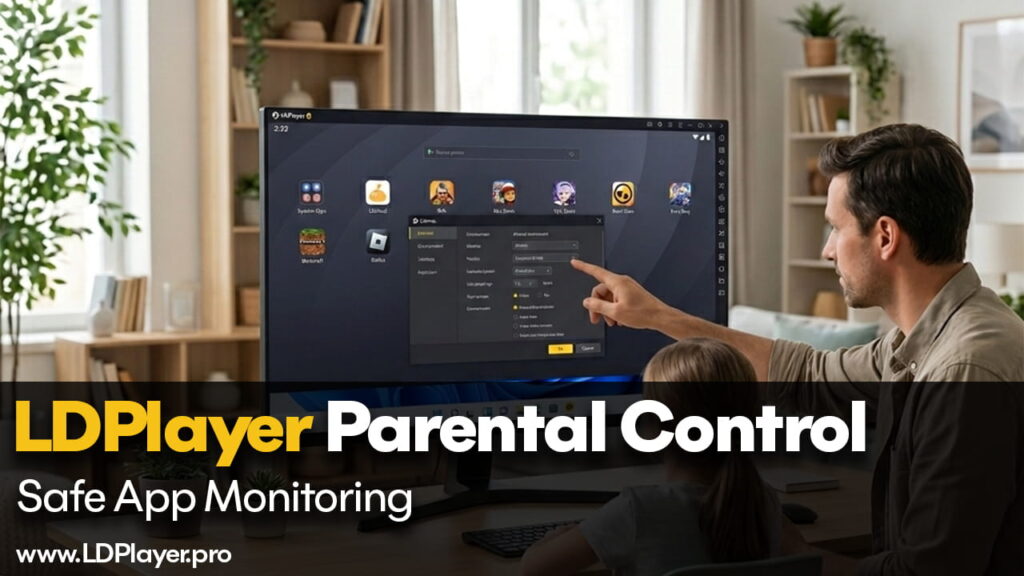
Why Use an Emulator for Monitoring?
Many families struggle with one big question. What are children doing online, and where are they doing it? Managing many phones and tablets takes time. Therefore, using LDPlayer on one PC makes things easier.
Centralized Supervision
First, the Android device stays on a fixed computer. It does not move around the house. Consequently, parents can place the PC in a living room or study area. This setup supports visible Android app usage.
A large monitor also helps. It is easier to glance at a 24-inch screen than a small phone. So parents can supervise without standing over a child. In other words, supervision becomes natural, not stressful.
Better Visibility
Screen mirroring happens by default because everything runs on the PC. Therefore, Android app usage appears clearly. Small icons and text look bigger. This helps parents quickly notice unusual activity.
Resource Management
LDPlayer allows control over system resources. For example, parents can reduce CPU or RAM settings. As a result, heavy games may not run smoothly. This keeps the focus on study or approved apps.
Its true that children like powerful games. They are exciting. So its good to limit technical power when learning matters more. In this way, Android app usage stays balanced.
Setting Up a Monitored Environment
Before children use the emulator, parents must prepare it carefully. A safe setup prevents problems later. Therefore, configuration becomes very important.
1. Create a Dedicated Instance
LDPlayer includes a tool called LDMultiPlayer. With this tool, parents can create a special instance only for the child. An instance works like a separate Android device inside the PC.
This separation keeps work apps and personal apps apart. Moreover, it prevents mixing adult content with child content. Renaming the instance helps too. For example, calling it “Study Tablet” makes the purpose clear.
Clear names reduce confusion. They also build structure. Structure supports healthy Android app usage habits.
2. Password Protect the PC Login
LDPlayer runs on Windows. Therefore, Windows account settings matter. The computer should have a password. In addition, the child should use a standard user account.
A standard account limits system changes. It reduces the chance of uninstalling LDPlayer. It also protects network settings. So even if a child explores settings, major controls remain safe.
Its true that some children understand technology well. They are curious. So its good to use account limits as a first safety step.
Integrating Google Family Link with LDPlayer
LDPlayer works like a real Android phone. Because of this, it supports Google Family Link. This integration improves Android app usage monitoring.
How to Sync Family Link
First, open the Play Store inside LDPlayer. Then sign in using the child’s Google account. After that, open Google Family Link on the parent’s smartphone.
The emulator device will appear in the managed device list. Often, it shows a model name like SM-G975N. Once connected, parents can manage settings remotely.
Daily screen time limits can be set. App downloads can be approved or blocked instantly. Usage reports show which apps run and for how long. Therefore, Android app usage becomes measurable.
Data helps parents understand patterns. Patterns show habits. And habits guide better decisions.
LDPlayer Features That Help Parents
Beyond Android settings, LDPlayer provides extra tools. These tools add more control layers. Therefore, safety increases.
The Synchronizer Tool
In homes with more than one child, settings must stay consistent. The Synchronizer copies one instance’s configuration to others. So if one child account has limits, all others can have the same limits.
Consistency reduces arguments. It also prevents unfair differences. As a result, Android app usage rules stay equal for everyone.
Disabling Root Access
Some emulators allow Root access. Root gives full system control. However, full control is risky in a child environment.
Inside LDPlayer settings, Root access should remain disabled. When Root stays off, system restrictions stay strong. This prevents bypassing app limits. It also protects monitoring tools from deletion.
Its true that advanced users can change systems with Root. They feel powerful. So its good to turn Root off to protect safety rules.
Instance Locking
LDPlayer also allows password protection for specific instances. If the PC is shared, this feature helps. Parents can lock the child’s instance. Then it opens only with supervision.
This adds another boundary. Boundaries support structured Android app usage. They also send a clear message that rules matter.
Establishing Digital Boundaries
Software alone does not teach responsibility. Conversation matters too. Therefore, families should talk about digital safety.
The Big Screen Rule
One helpful rule says Android apps stay on the living room PC. This removes private or secret usage. Because the screen is large and visible, honesty increases.
Children understand visible rules better than hidden ones. So placing Android app usage in a common area builds trust.
Review the Logs Together
Once a week, parents can open Google Family Link reports with the child. Together, they can review app usage data. If one app takes too much time, discussion can happen.
This practice teaches self-control. It shows that data is not punishment. Instead, data guides learning.
Network-Level Filtering
For stronger safety, router-level filtering can help. A DNS filter like OpenDNS can block adult content. Even if browsing happens inside the emulator, filters remain active.
Layered protection works best. One tool supports another tool. So Android app usage stays within safe limits.
Final Thoughts
LDPlayer changes from a gaming emulator into a controlled Android sandbox. It brings Android app usage to one visible place. Moreover, it supports structured supervision without constant pressure.
By linking Google Family Link and disabling Root access, parents gain control. At the same time, children still enjoy their favorite apps. Balance becomes possible.
Its true that people dont like feeling watched. They feel uncomfortable. So its good to explain rules clearly and involve children in decisions.
When clear rules, technical settings, and open talks work together, Android app usage becomes healthy. Families then move from fear to guidance. And guidance builds long-term digital responsibility.