Pokémon GO changed mobile gaming in a big way. It mixes old Pokémon fun with AR and real maps. Since its launch, it pushed many Trainers to go outside. Still, outdoor play does not fit every day. Also, some Trainers want a bigger screen. So, many look for PC play.
This guide explains Pokémon GO on PC with the LDPlayer Android emulator. It covers setup, key features, and control tips. In addition, it explains risks and safe habits. The goal stays simple. Play smoother, plan better, and avoid common mistakes.

What is Pokémon GO
Pokémon GO is a location-based AR game made by Niantic. It uses GPS to place Pokémon on a real-world map. Instead of moving in a made-up world, Trainers move in real places. Then the game shows Pokémon nearby. After that, Trainers can catch, battle, and train them.
The main idea involves travel and discovery. For example, Water-types often show up near water areas. Likewise, Grass-types often show up in parks. Also, the game uses real landmarks. These landmarks become PokéStops and Gyms. So, the world turns into a game board.
On PC, an emulator runs the app. Then the location can be set inside the emulator. As a result, the map can change without real travel. However, that creates rule risks. So, caution matters.
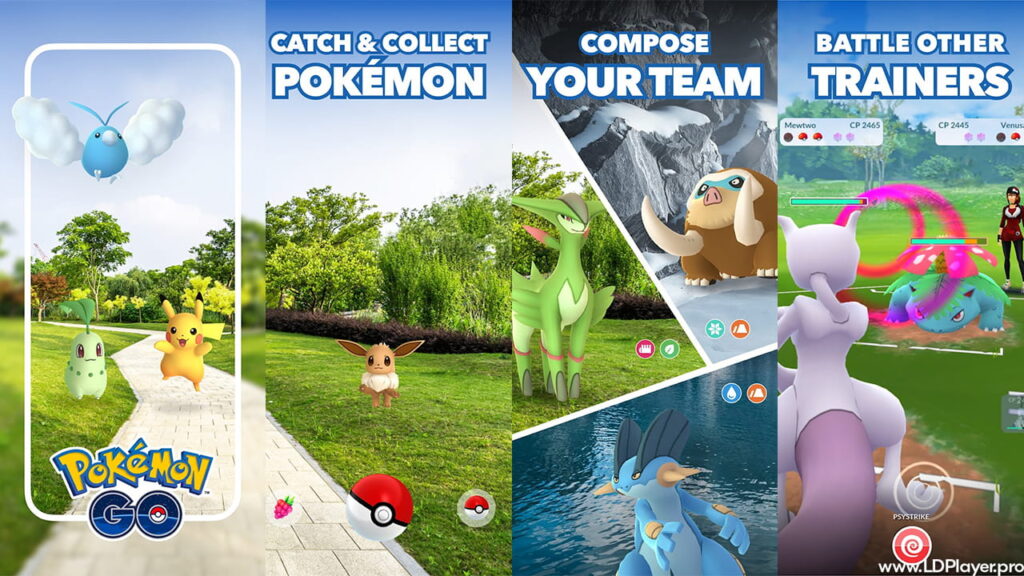
Pokémon GO Features
Over time, Pokémon GO added many new systems. So, gameplay feels deeper than in 2016. Also, updates change how Trainers plan each day.
Max Battles and Dynamax
Max Battles bring giant fights at Power Spots. Dynamax and Gigantamax make Pokémon grow huge. Then attacks hit harder, and battles feel different. So, team choice and timing matter more.
GO Battle League
GO Battle League is the main PvP mode. Trainers fight others around the world. On PC, mouse clicks feel steady. So, charged moves can feel easier to time. Also, quick swaps can feel faster with hotkeys. Still, skill and team building decide most matches.
Routes and Party Play
Routes let Trainers follow a set path for rewards. Meanwhile, Party Play lets up to four play together. Then the group gets bonuses in Raids. So, teamwork can bring faster wins.
Raids
Raids are co-op battles against boss Pokémon. Higher tiers often include Legendary bosses. Therefore, groups and counters matter a lot. Also, timing, healing, and rejoining can determine success.
Team GO Rocket
Team GO Rocket fights add NPC battles. Trainers beat grunts and leaders. Then, Shadow Pokémon can be rescued. After that, Shadow Pokémon can be purified for changes in stats and cost.
How To Install Pokémon GO on LDPlayer
To run Pokémon GO on LDPlayer, a clean setup helps. Also, correct settings reduce errors. So, follow the steps in order.
- Download LDPlayer from its official source. LDPlayer 9 often works better for Android 9 support.
- Install and open the emulator. Then finish the first-time setup screens.
- Open LD Store or Google Play Store inside LDPlayer.
- Search for Pokémon GO in the store search bar.
- Click Install. Then wait for game data to download.
- Sign in with a Google account if asked. After that, store access works normally.
- Launch Pokémon GO from the home screen icon.
Sometimes an error says “Device Incompatible.” So, check two common fixes. First, use the 64-bit emulator build. Second, keep Root turned off in settings. Many security checks block rooted systems.
How To Play Pokémon GO
Playing Pokémon GO on PC changes movement and control. Instead of real walking, the emulator uses virtual tools. So, learning the tools matters.
Virtual GPS and location
LDPlayer often includes a Virtual GPS tool. It usually sits on the right sidebar as a map icon. First, open the tool. Then pick a starting point on the map. After that, apply the location. Now the game loads that area.
Movement controls
Keyboard mapping can simulate walking. For example, W, A, S, and D can move the character. Then the player can move in small steps. Also, speed settings matter a lot. Therefore, set the speed to walking pace. A range around 5 to 9 km/h often works. Faster speeds can block egg progress. Likewise, buddy candy may not count.
Catching Pokémon
The mouse replaces finger swipes. Click and hold the Poké Ball. Then move the mouse in a small circle for a curveball. After that, release to throw. A mouse feels stable. So, “Great” and “Excellent” throws may feel easier.
Interacting with the map
Clicking works like tapping. Click a PokéStop to open it. Then drag the photo disc to spin it. Also, click Gyms to view teams and raids. Likewise, click wild spawns to start encounters.
Safety and Legality
This part matters most for Pokémon GO on PC. Niantic sets strict Terms of Service rules. So, any third-party setup can carry risk. Even if a setup seems normal, anti-cheat systems can still react.
Emulator risks
Pokémon GO targets real phones and tablets. Emulators do not match that hardware. So, the game may flag the environment. As a result, warnings or bans can happen. Some players use emulators for comfort or access needs. Still, risk never drops to zero.
Cooldown rules
Location changes can trigger a soft ban. So, long jumps must match real travel time. For example, jumping from New York to Tokyo in seconds looks wrong. Then catches and spins may fail. Soft bans can last up to about two hours. Therefore, wait the full travel time before playing again.
Rooting and modding
Root settings often cause problems. So, keep Root disabled in LDPlayer settings. Also, avoid modded apps and cheat tools. Those tools raise risk fast. In addition, they can break accounts without warning.
Legality note
Using an emulator is not usually a crime by itself. However, it can break the game’s service rules. So, this stays a policy issue, not a court issue. Therefore, use care and accept the risk.
Pokémon GO FAQ
Q: Can Pokémon GO run on PC without a strong GPU?
A: Yes, Pokémon GO does not need heavy graphics power. However, enable VT in BIOS for smoother emulator speed. Otherwise, lag can feel worse.
Q: Why does Pokémon GO crash right after opening?
A: Security checks may fail on some setups. So, update LDPlayer and use the 64-bit version. Also, keep Root off and avoid risky add-ons.
Q: Can Pokémon GO Pokémon transfer to Pokémon HOME?
A: Yes. Account data lives on the server. So, Pokémon caught on PC still appear on a phone later. Then transfers to Pokémon HOME can work as usual.
Q: Is it safe to use a main account for Pokémon GO on PC?
A: Risk exists with emulators and location tools. Therefore, many players use an alt account. That helps protect a main collection.
Final Words
Pokémon GO still delivers a mix of collecting, battles, and real-world style exploring. PC play through LDPlayer can add comfort and control. Also, a larger screen helps with storage sorting and quick menu use. So, daily tasks can feel easier.
However, rules and risk stay real. So, careful habits matter every time. Use walking speeds, respect cooldown time, and keep Root off. In addition, avoid cheats and modded builds. With smart choices, Pokémon GO on PC can feel smooth and fun while lowering trouble chances.