Most people use LDPlayer just to play mobile games on a bigger screen. However, the tool offers much more than that. It includes many advanced features that help automate tasks, manage multiple accounts, and improve performance. Because of this, it works well for both gamers and developers.
So, these 10 features can help turn a basic user into a power user.
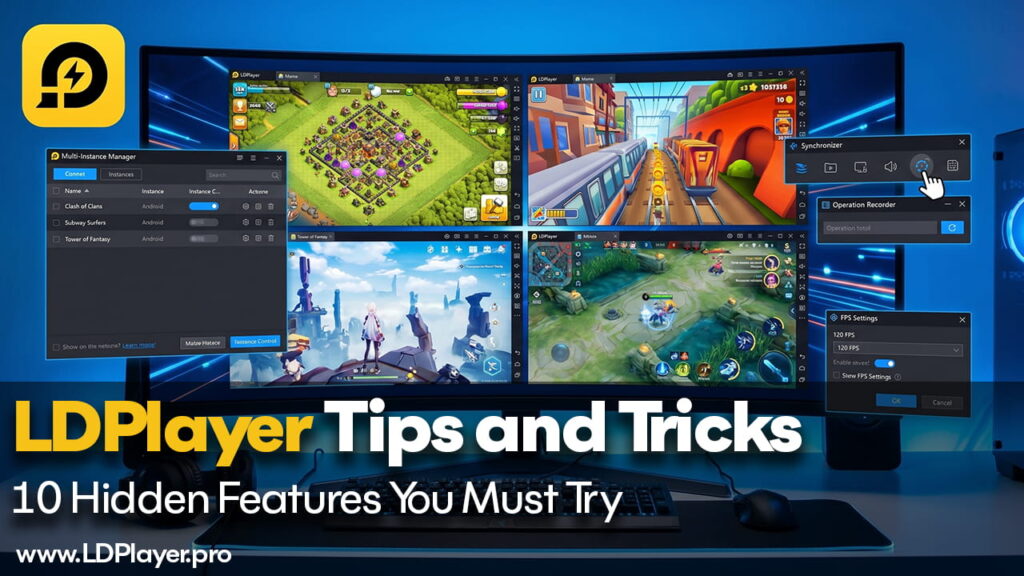
1. The Synchronizer: Control Many Instances at Once
The Synchronizer is one of the least used tools, yet it is very useful. It is available in the right toolbar or by pressing Ctrl + 9. This feature allows one action in one window to repeat in all other open windows.
This helps when running multiple game accounts or apps at the same time. For example, it works well for re-rolling in gacha games or handling many social accounts.
However, there is one important thing to check. All emulator windows must use the same resolution and DPI. If one window uses 1280 × 720 and another uses 1600 × 900, clicks will not match properly.
2. Advanced Operation Recorder (Macros)
Many users repeat the same actions every day. Because of this, the Operation Recorder becomes very helpful. It records actions and plays them again automatically.
This tool allows users to:
- Change playback speed up to 5x
- Loop actions until stopped
- Combine multiple recordings into one
So, instead of doing daily tasks again and again, the recorder can handle everything.
3. Drag and Drop File Transfer
Moving files between a PC and an emulator used to take time. However, LDPlayer makes it simple with drag-and-drop support.
Users can drag an APK file directly into the emulator window to install it. This saves time and avoids extra steps.
There is also a shared folder feature. Files placed in the Windows shared folder appear inside the emulator automatically. These files can be found in the Pictures or Download folder in Android.
4. Unlocking 120 FPS and Higher
Most mobile games run at 60 FPS. However, LDPlayer allows higher frame rates like 120 FPS or even 240 FPS.
To enable this:
- Go to Settings
- Open Game Settings
- Select High Frame Rate
But this alone is not enough. The same option must also be turned on inside the game settings. Without this step, the higher FPS will not work.
This feature helps a lot in fast games like shooting games, where smooth movement gives an advantage.
5. Virtual GPS for Location Control
The Virtual GPS tool allows users to change their location inside the emulator. It is available in the right toolbar.
This helps when testing apps that depend on location. It also helps access region-based content without using a VPN.
Because of this, developers can test apps in different locations easily.
6. Root Access Made Simple
LDPlayer allows root access with a simple setting. This feature is not common in many emulators.
To enable it:
- Go to Settings
- Open Other Settings
- Turn on Root Permission
Once enabled, apps like Titanium Backup or SD Maid can be used. These apps help remove system apps that are not needed.
As a result, the emulator uses less CPU power and runs smoother.
7. Custom Keymapping with Scripts
LDPlayer includes a keymapping system for controls. However, it also allows advanced scripting using the “Write Macro” option.
This feature lets users assign complex actions to a single key. For example, one key can:
- Click one point
- Wait for 100 milliseconds
- Click another point
This works well for games that need quick actions or skill combinations.
8. Multi-Instance Low Memory Mode
Running many emulator windows can use a lot of RAM and CPU power. Because of this, performance may drop.
LDPlayer solves this with an optimization setting in the Instance Manager.
The key feature is “Lower FPS for other instances.” This reduces the FPS of background windows to 5–10 FPS. At the same time, the active window stays at full performance.
So, this setting helps save system resources while still running multiple instances.
9. Fixing Hyper-V Issues
On Windows 10 and 11, Hyper-V can cause problems with emulators. It may lead to lag or crashes.
If Hyper-V cannot be turned off, there is still a solution. Using LDPlayer 9 (64-bit) helps fix this issue. This version is designed to work with Windows virtualization.
Because of this, errors like “Virtualization Technology not found” can be avoided.
10. Built-in Video Recorder
Recording gameplay usually requires external software. However, LDPlayer includes a built-in video recorder.
This tool records gameplay directly into MP4 format. It is light and does not slow down the emulator.
Because of this, users can record clips without facing lag or stuttering.
Final Thoughts
These features show that LDPlayer is more than just a game emulator. It works as a powerful tool for automation and performance control.
Features like the Synchronizer and Operation Recorder save time and effort. At the same time, tools like high FPS and low memory mode improve performance.
However, one important step should not be ignored. Virtualization Technology (VT) must be enabled in the PC BIOS. Without this, performance will drop no matter what settings are used.
So, by using these features correctly, users can get the best experience from LDPlayer.