Brotato Shooter Coloring Game brings action and creativity into one simple gaming experience. Players can fight enemy waves, collect useful items, improve their gear, and enjoy coloring activities. As a result, the game offers both fast action and calm creative play. This mix makes it suitable for players who enjoy short battles as well as relaxing game modes.
What is Brotato Shooter Coloring Game?
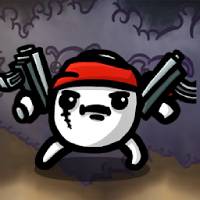
Brotato Shooter Coloring Game is an action and casual game made for mobile play and Android emulators on PC. The main mode uses a top-down arena where the player controls a character while many enemies move in from different directions.
The goal is to survive each wave while collecting useful materials. These materials can help improve weapons, character stats, and other parts of the build. As enemies become stronger, players need better movement, stronger gear, and useful upgrades.
Weapons can attack nearby targets automatically in some situations. However, available control settings may also support more direct input. This allows players to focus on movement while still dealing damage during busy battles.
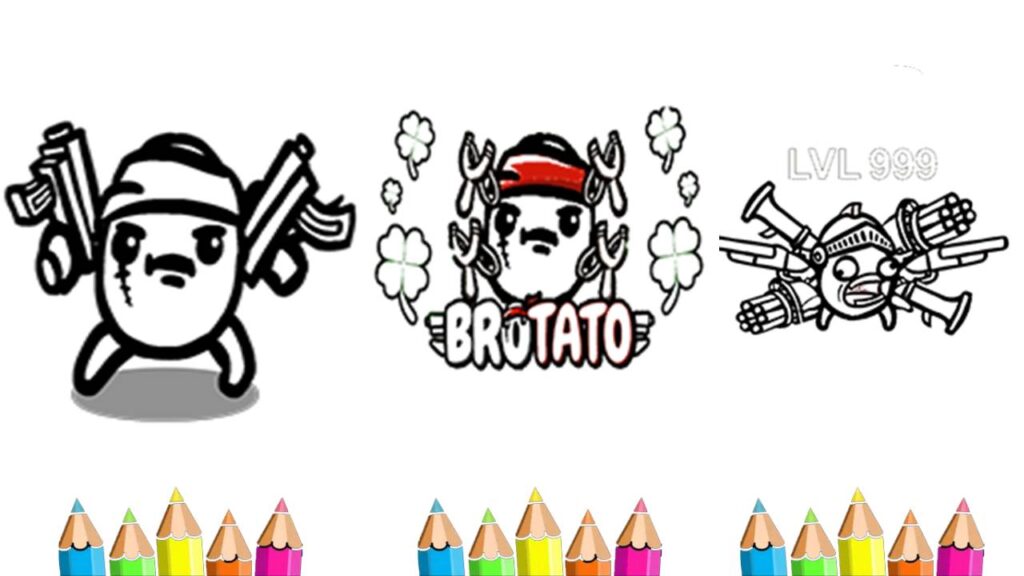
The coloring system adds another part to the experience. Players can open artwork based on characters, weapons, and battle scenes. Different colors can then be used to change the look of each image.
Some designs and color options may become available as progress is made. Therefore, combat and creative play can support each other. Battle progress gives players more reasons to keep playing, while the art section gives them another way to enjoy unlocked content.
Brotato Shooter Coloring Game Features
Dual-Genre Gameplay Integration
Brotato Shooter Coloring Game mixes wave-based shooting with digital coloring. This setup gives players two different activities inside the same game.
The survival sections focus on movement, attacks, upgrades, and enemy control. Meanwhile, the art sections focus on colors and visual changes. Because the two modes feel different, players can switch between them when they want a change of pace.
This system also helps reduce repetition. After several action rounds, a slower coloring activity can offer a useful break. Then, players can return to battle when they want more action.
Diverse Character and Weapon Selection
Players can choose from different character types with different starting features. Some characters may focus more on health, attack speed, damage, movement, or other useful stats.
Weapons also play an important role in each run. Players can use firearms, close-range weapons, and other attack tools depending on the available choices. In addition, more than one weapon can be used during a run.
Different weapon combinations can create different play styles. For example, one setup may focus on attacking enemies from a distance. Another setup may use short-range attacks with higher damage.
Because each run can use different upgrades, players can test several builds instead of following only one path.
Creative Art Studio and Custom Palettes
The coloring section gives players access to digital artwork linked to the game. These images may include characters, weapons, enemies, and action scenes.
Players can choose colors and apply them to different parts of the artwork. As a result, the same design can look different depending on the selected colors.
Additional color choices and artwork can also give players more reasons to continue making progress. This feature adds simple visual customization without changing the main combat system.
Fast-Paced Wave Survival
Battle rounds are designed around short enemy waves. Each wave gives players a limited amount of time to survive and defeat as many threats as possible.
Short rounds help keep the action moving. They also make the game easier to play during short breaks. However, longer sessions are still possible because players can continue through several waves.
Enemy numbers and difficulty can increase during later stages. Therefore, players need to keep improving their build instead of relying only on starting equipment.
Performance Optimization for PC Emulators
Brotato Shooter Coloring Game can also be played through supported Android emulators such as LDPlayer. PC play can make controls easier for players who prefer a keyboard and mouse.
A larger screen can also make enemies, items, and menus easier to see. In addition, emulator settings may allow players to adjust resolution, frame rate, and control mapping.
Performance still depends on the computer and emulator settings. For this reason, players should use suitable graphics settings based on the hardware available.
How To Install Brotato Shooter Coloring Game on LDPlayer
Playing on LDPlayer allows the game to run inside an Android environment on a Windows PC. Follow these steps to complete the setup.
1. Download and Install LDPlayer
First, open the official LDPlayer website using a web browser.
Download the current LDPlayer installer that matches the PC. After that, open the downloaded setup file.
Follow the installation instructions shown on the screen. Once installation is complete, start LDPlayer.
Virtualization may improve emulator performance when the PC supports it. Therefore, checking the system settings can be useful if the emulator runs slowly.
2. Launch LDPlayer and Sign in to Google Play
Open LDPlayer from the desktop or Start menu.
Next, open the System Apps folder from the emulator home screen. Select the Google Play Store.
Sign in with a valid Google account. This step allows apps to be downloaded through Google Play inside the emulator.
3. Search for the Game
Open the Google Play Store search field.
Type the full game name into the search bar. Then, check the search results carefully and select the correct app page.
4. Install the Application
Choose the Install option on the app page.
LDPlayer will begin downloading the required files. After the download finishes, the emulator will complete the installation.
The game icon should then appear on the emulator home screen.
5. Configure Keymapping and Launch
Open the game from the LDPlayer home screen.
Next, use the keyboard mapping tool from the emulator sidebar. Set movement controls to preferred keys, such as WASD.
Other available actions can also be assigned to suitable keyboard or mouse buttons. After saving the layout, start playing and adjust the controls again if needed.
How To Play Brotato Shooter Coloring Game
Select a Character
Start by choosing an available character. Each character may have different stats, bonuses, or starting equipment.
Check the basic strengths before starting a run. A suitable character can make certain weapon builds easier to use.
Navigate the Arena
Move around the arena while watching enemy positions.
Avoid direct contact when possible. Also, stay away from dangerous projectiles or crowded areas.
Good movement is important because enemies may enter from several directions at the same time.
Manage Automatic and Manual Firing
Some weapons can attack nearby enemies automatically.
When extra aiming controls are available, players can adjust them based on personal preference. Automatic attacks make movement easier, while manual control may help with target selection.
Collect Materials and Experience
Defeated enemies can leave useful materials behind.
Move close enough to collect these items. They may provide experience, currency, or other progress needed for the current run.
Collecting enough resources helps the character become stronger before later waves.
Upgrade Gear Between Waves
After a wave ends, players may receive access to upgrades or a shop.
Use available resources to improve important stats. New weapons, stronger equipment, or useful bonuses may also appear.
Try to choose upgrades that support the current build. For example, a ranged build may benefit from attack speed, range, or damage upgrades.
Enter the Coloring Studio
After unlocking available artwork, open the coloring section from the main menu.
Choose a picture and select the colors that fit the design. Then, fill the available areas until the artwork is complete.
This mode offers a slower activity after difficult battle rounds.
Safety and Legality
Brotato Shooter Coloring Game should be downloaded from official or trusted sources. Using a trusted store helps reduce the risk of damaged files, fake apps, or unsafe software.
Data Privacy
Players should review the permissions requested during installation.
A normal mobile game may request access related to storage, network features, or account services. However, unnecessary permissions should always be checked before they are accepted.
Account details should only be entered through trusted login screens.
Emulator Compatibility
Android emulators such as LDPlayer create a software-based Android environment on a PC. This allows supported mobile apps to run on Windows hardware.
Players should still follow the terms of the game, the app store, and the emulator platform. In addition, emulator software should come from its official source.
Monetization Safety
Some versions of mobile games may include ads, optional purchases, or reward systems.
When purchases are available, players should use trusted payment methods offered through official stores. Avoid entering payment details into unknown pages or unofficial tools.
Parental controls can also help manage purchases when younger players use the device.
Brotato Shooter Coloring Game FAQ
Q: Can Brotato Shooter Coloring Game be played offline?
A: Some gameplay features may work without a constant internet connection. However, downloads, updates, account services, ads, or other online features may need internet access. Available offline features can depend on the installed version.
Q: Is Brotato Shooter Coloring Game suitable for all age groups?
A: The game uses simple controls, cartoon-style visuals, and creative coloring activities. However, it also includes shooting and enemy combat. Parents should review the game content and store rating before allowing younger children to play.
Q: What are the minimum PC requirements to play on LDPlayer?
A: LDPlayer needs a supported Windows PC, enough RAM, free storage space, and a compatible processor. Virtualization can also improve performance. Exact requirements can depend on the LDPlayer version and the game settings being used.
For smoother play, close unnecessary programs before starting the emulator. Lowering display resolution or graphics settings may also help on older systems.
Q: How do you unlock new coloring canvases?
A: New artwork may become available through game progress, completed stages, achievements, or other in-game goals. Players should continue completing battle content and checking the coloring menu for newly available designs.
Final Words
Brotato Shooter Coloring Game combines short survival battles with simple digital art activities. Players can fight enemy waves, collect materials, improve weapons, and build different character setups. At the same time, the coloring section adds a calmer way to interact with the game.
The two gameplay styles support different types of sessions. Action stages work well when players want quick and active gameplay. In comparison, coloring sections are useful when a slower activity feels more suitable.
PC players can also use LDPlayer to access keyboard controls, mouse input, and a larger display. Proper emulator settings can make movement and menu control more comfortable.
Brotato Shooter Coloring Game keeps its main systems easy to understand while still giving players room to test different builds and creative choices. For players who enjoy both survival shooting and simple coloring activities, the game offers both styles in one connected experience.