My Town: Neighbourhood games give children a fun digital space for creative play. The game brings the feel of a classic dollhouse to phones, tablets, and computers. Children can move characters, touch objects, visit places, and create their own stories.
Instead of forcing players to follow one fixed path, the game supports free play. Children can decide what happens next. For example, they can plan a family meal, visit a shop, play in a park, or arrange a small party.
The game also gives children many ways to use their imagination. They can create simple daily stories or build longer adventures. As a result, each play session can feel different.
Parents may also find the game easy to understand. The controls are simple, and the main actions use taps, drags, and drops. Therefore, young players can start exploring without learning difficult rules.
The game world includes homes, shops, public places, and many characters. Each area contains items that players can use during roleplay. Because of this, children can enjoy open play while learning how places and people connect.
What is My Town: Neighbourhood games?
My Town: Neighbourhood games are digital roleplay apps made for children. They work like an interactive dollhouse, but the rooms, people, and objects appear on a screen.
Players can move characters from one place to another. They can also place characters on beds, chairs, floors, or other objects. In addition, many items react when the player taps them.
The game does not focus on scores, winners, or strict goals. Instead, it gives children control over the story. They can choose the characters, location, clothes, actions, and events.
For example, one child may create a quiet family morning. Another child may build a story about friends visiting a local shop. Since there is no single correct way to play, children can use the same location in many ways.
Some titles in the series can also connect with other My Town apps. This feature may let players move characters or items between supported locations. As a result, several small game areas can become one larger play world.
The design supports short and long play sessions. A child can explore one room for a few minutes. However, the same child can also create a full story across several buildings.
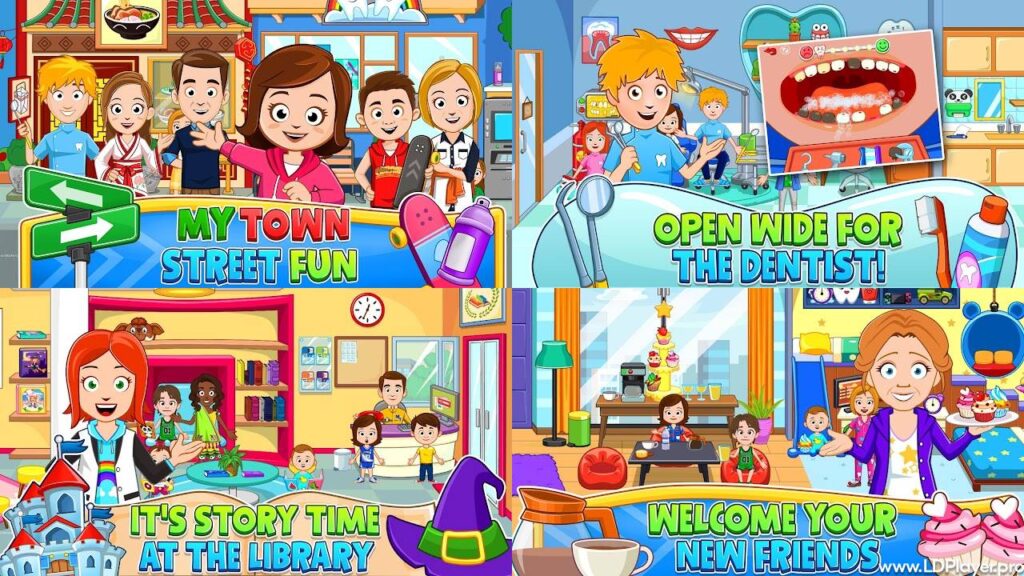
My Town: Neighbourhood games Features
Endless Exploration and Discovery
Exploration is a major part of My Town: Neighbourhood games. Players can enter different homes, shops, parks, and other local places.
Each area has its own look and purpose. A home may include bedrooms, a kitchen, and a living room. Meanwhile, a shop may contain products, counters, shelves, and staff members.
Children can move through these places at their own speed. They can also return to the same room and use it in a new story.
Hidden items may appear in drawers, cupboards, boxes, or other objects. Therefore, tapping different parts of the screen can lead to small surprises.
Players can also rearrange some items to fit their story. For instance, they may move food onto a table or place toys around a room. This freedom helps each location feel more personal.
Interactive Elements
The game world includes many touchable objects. Children can tap, drag, open, close, move, or use different items.
For example, they may prepare food in a kitchen, switch on a light, open a door, or change a character’s clothes. They may also use toys, tools, furniture, and simple devices.
These actions make the game feel active. Instead of only watching the screen, players take part in each scene.
Simple controls also help children learn through practice. Dragging a character from one place to another supports hand control. In the same way, placing objects in the correct area may support basic space awareness.
The game does not require fast reactions. Therefore, children can take their time and test different actions.
Character Customization and Roleplay
Roleplay gives children a simple way to create stories. In My Town: Neighbourhood games, players can choose characters and decide how they take part in each scene.
They can change clothes, move characters into different rooms, and give them different roles. One character may act as a parent, teacher, shop worker, doctor, friend, or visitor.
Children can also copy familiar events from daily life. For example, they may create a school morning, a family dinner, a shopping trip, or a visit to a clinic.
At the same time, they can create new events that do not follow real life. A small home can become a party place, meeting room, or secret base.
This type of play may help children think about people, actions, and simple social situations. It also gives them a safe space to test ideas through stories.
Connectivity and Expansion
Some games in the My Town series support links with other titles. When supported apps are installed on the same device, players may move characters between them.
This feature gives children more places to explore. A character may leave a home, visit a shop, and then travel to another location.
Items may also move between certain connected games. However, this can depend on the title, version, and device.
Keeping each app updated can help supported links work correctly. In addition, using the same device helps the games find related content.
This system allows the play world to grow over time. As more supported locations become available, children can create longer stories with more settings.
How To Install My Town: Neighbourhood games on LDPlayer
Playing on a larger screen can make rooms, objects, and characters easier to see. Follow these steps to install the game on a computer with LDPlayer.
Step 1: Download and Install LDPlayer
Open the official LDPlayer website in a web browser. Download the installer that matches the computer system.
After the download finishes, open the installer. Follow the on-screen steps to complete the setup.
Step 2: Open LDPlayer
Launch LDPlayer after the installation ends. The emulator will open a virtual Android screen on the computer.
Allow the program to finish its first setup. This may take a short time on the first launch.
Step 3: Access the Google Play Store
Open the Google Play Store inside LDPlayer. Sign in with a Google account when asked.
A Google account is needed to download apps from the Play Store.
Step 4: Search for the Game
Use the Play Store search bar. Type the full game name and check the search results.
Select the correct app page before starting the download.
Step 5: Install the Game
Click the Install button. The Play Store will download and install the game inside LDPlayer.
Wait until the installation process finishes.
Step 6: Launch and Play
Return to the LDPlayer home screen. Find the game icon and click it.
The game will then open on the computer. Players can use the mouse to tap, drag, and move items on the screen.
How To Play My Town: Neighbourhood games
My Town: Neighbourhood games use simple touch controls. After opening the game, players can choose a location from the main map.
Tap a house, shop, park, or other building to enter it. Once inside, look around the room and check the available characters and objects.
To move a character, tap and hold the character. Then drag the character to another place and release it.
Characters can stand, sit, lie down, or move between rooms. Their available actions may depend on the object or location.
Tap different items to see how they react. For example, doors may open, lights may switch on, and cupboards may reveal hidden objects.
Players can also move objects by dragging them. Food can go on tables, clothes can go on characters, and toys can move around rooms.
To visit another place, return to the map or use the available travel option. Then choose the next building.
There is no required order. Players can create any safe story they wish. They can also restart a scene and try a different idea.
Safety and Legality
Child safety is an important part of digital play. Parents should check the app page, privacy details, age rating, and device settings before use.
The game is designed for children and uses simple roleplay features. However, parents should still review available purchases, ads, permissions, and online features.
Some versions may include ads or optional paid content. Therefore, purchase approval settings can help prevent unwanted spending.
Parents can also use device controls to manage screen time. In addition, they can choose which apps children may open.
Only official app stores and trusted sources should be used for installation. Modified files from unknown websites may contain harmful software or unwanted changes.
Adult guidance can make play safer and more useful. For example, parents can ask children about the story, characters, and places they create.
Privacy rules and app features may change over time. Therefore, users should review the current privacy policy and store details before installing or updating the game.
My Town: Neighbourhood games FAQ
Are there in-app purchases in My Town: Neighbourhood games?
Some titles may include optional in-app purchases. Certain locations, characters, items, or extra content may require payment.
Available free content can depend on the game version. Subscription plans may also unlock more content across supported titles.
Parents should enable purchase approval before giving the device to a child. This step helps prevent unplanned purchases.
Can I move characters between different games?
Some supported My Town titles allow character movement between connected apps. The games usually need to be installed on the same device.
Each app should also use a compatible and updated version. If a transfer option appears, select the character icon and follow the on-screen steps.
Not every title may support the same connection features. Therefore, check the information shown inside each app.
How do I fix glitches or connection issues?
First, close the game and open it again. This simple step can fix small loading or display problems.
Next, check that the device has enough free storage. Also, update the game and the device software when updates are available.
If the app includes a Reset button, use it carefully. Read any warning message before confirming the reset.
For connection problems, check the internet connection and restart the router when needed.
If the issue continues, restart the device. Reinstalling the game may also help, but saved data could be removed. Therefore, check backup or account options before deleting the app.
Final Words
My Town: Neighbourhood games give children an open digital space for stories, roleplay, and discovery. The simple controls make it easy to move characters, use objects, and explore different places.
Each room can support a new idea. Children may create family events, shopping trips, school scenes, parties, or their own made-up adventures.
The game does not push players toward one goal. Instead, it lets them choose what happens and how the story develops.
Connected titles can also make the play area feel larger. With more places and characters, children can build longer stories across different settings.
Parents should still review purchases, ads, privacy details, and device controls. Safe settings and adult guidance can support a better play experience.
Whether played on a mobile device or through LDPlayer on a computer, the game keeps the main focus on imagination. Children can explore, create, and return with a new story each time.