When someone installs an Android emulator like LDPlayer, they usually want better speed and smoother gameplay. But just having faster performance is not enough. If the game controls feel weird or slow, it ruins the fun. Some features in LDPlayer, like Multi-Instance Manager or High-FPS Mode, are useful. But for someone just starting out, the most helpful feature is the Keyboard Mapping Tool, also called Keymapping.
This tool changes how mobile games feel on a PC. It helps you stop clicking clumsy buttons and start using real keyboard and mouse controls like in normal PC games. That makes games easier to play and more fun.
Why Touchscreen Controls Don’t Work Well on PC
Mobile games are made for fingers on a phone screen. But on a computer, the emulator replaces touches with mouse clicks. That works okay for puzzle or strategy games. But in games like shooters, RPGs, or MOBAs, it becomes a big problem. You can’t move and aim at the same time just by clicking with a mouse. It feels slow and hard.
Trying to play fast games using mouse clicks is not just hard—it’s almost impossible. The game is built for tapping and sliding, but the PC setup is not ready for that out of the box.
How Keyboard Mapping Fixes This
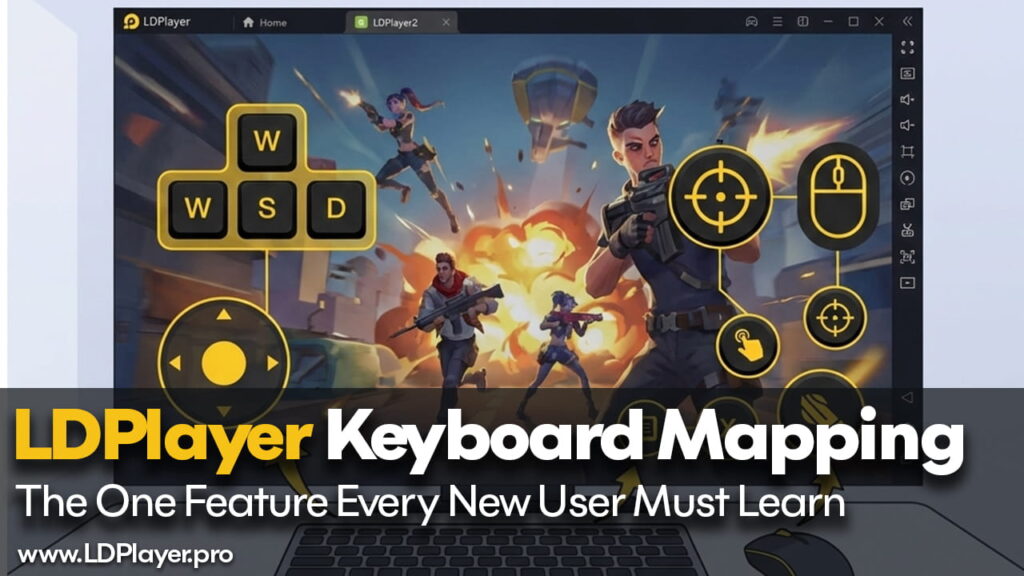
The Keymapping Tool in LDPlayer lets users set their keyboard keys to match parts of the mobile screen. For example, if you want to move your character forward, you can press the “W” key. Behind the scenes, LDPlayer taps the right spot on the game screen for you.
This idea sounds simple, but the tool does more than just tap spots. It can handle swipes, tilts, and other moves like shaking or sliding. This makes it work better for all kinds of mobile games.
Main Keymapping Tools That New Users Should Try
To start, users just need to click the keyboard icon on the side panel or press the F12 key. A small window will pop up with icons that can be dragged into the game screen. These are the three most important ones for beginners:
1. The Movement Joystick (WASD)
In most action games, the first thing people want to do is move the character. That’s why LDPlayer gives you a “Cross” icon. Drag it onto the place where the game shows its movement circle. Once it’s placed, you can walk using the W, A, S, and D keys.
This turns slow screen tapping into fast keyboard movement, just like in computer games.
2. The Shoot Mode (Mouse Look)
This is the part that confuses many new users. In shooting games like Call of Duty: Mobile or Free Fire, players need to look around by moving their mouse, not dragging on the screen.
To fix this, just drag the “Crosshair” icon to the center of the screen.
Now, when you press Ctrl or sometimes Right Click, the mouse pointer disappears. Then, moving the mouse turns your view, like in a regular PC shooter game. It feels more real and makes aiming way easier.
3. The Fire Button
Shooting is useless if you can’t fire. That’s why LDPlayer lets you place a mouse icon over the game’s “shoot” button. After placing it, clicking the Left Mouse Button will tap that spot in the game.
This works best with the Shoot Mode active. Together, these tools make shooting smooth, and you forget you’re even using a mobile emulator.
Extra Help with Smart Keymapping
For games like PUBG Mobile, Mobile Legends: Bang Bang, or Black Desert Mobile, LDPlayer has something better—Smart Keymapping.
This feature detects the game you’re playing. Then it loads ready-made controls designed to fit that game perfectly. That means you don’t have to build your control setup from zero.
A smart thing about this feature is how it changes based on what you’re doing in the game. If you open a map or get into a car, the key setup will switch by itself. It makes things easier and saves time.
Tip: Every time you start a new game, press F12 to check if Smart Keymapping is already active. If it is, you’re ready to go. If not, you can add your own key icons.
Fixing Common Problems in Keymapping
Even though the Keymapping tool is strong, it’s not perfect. Sometimes it needs small fixes. Here are a few common problems and how to solve them:
Problem 1: Mouse Cursor is Visible
If the mouse is on the screen and moving, the camera doesn’t work; the Shoot Mode might be off. Press Ctrl or F1 to turn it back on. That should make the camera move when you move the mouse.
Problem 2: Mouse Moves Too Fast or Too Slow
Sometimes, aiming feels strange. Don’t fix this inside the game settings first. Instead, open the Keymapping window, click on the Shoot Mode icon you placed, and adjust the X and Y sensitivity sliders. Try small changes until the mouse feels right.
Problem 3: Keys Don’t Work Anymore
If a key you set stops working after a game update, the button probably moved on the screen. This happens often. Just open the Keymapping tool, find the icon, and drag it to the new button location.
Final Thoughts
LDPlayer comes with lots of useful tools. It has options like script recorders, tweaks for performance, and support for multi-instances. But for new users, the most important tool to learn first is the Keyboard Mapping Tool.
Spending just a few minutes setting it up will make a big difference. Focus on getting movement with WASD, aim with the mouse, and set a fire button. After doing that, playing mobile games on a PC will feel like playing regular computer games. It’s fast, smooth, and easy.
This tool is the first thing new users should use to make the most out of LDPlayer.