Finding an Android emulator that offers high frame rates, low system resource usage, and stable long-term performance is not always easy. Many PC gamers who play Android games want an emulator that runs smoothly without slowing down the whole system. While older emulators like BlueStacks and Nox have been popular for years, more players are now moving to LDPlayer.
This detailed comparison explains the technical reasons behind this change. It looks at resource usage, customization options, and multi-instance management. It also covers the basic steps needed to set up LDPlayer for the best possible performance.
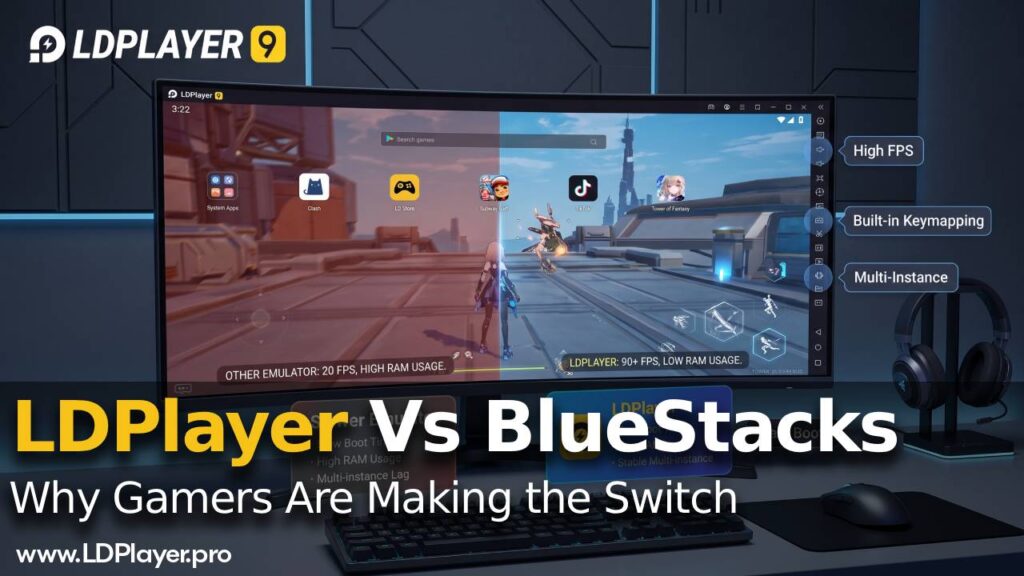
The Android Emulator Bottleneck: Common Performance Problems
Many modern mobile games need a lot of processing power and graphics performance. When these games run through an Android emulator on Windows, performance problems can appear if the emulator does not manage system resources well.
High RAM and CPU Usage
Many older emulators use more system resources than necessary. This often happens because they include extra background services, bundled software, and heavier virtual machine designs. On computers with 8GB or 16GB of RAM, running a demanding Android game together with normal Windows applications can lead to stuttering, higher system temperatures, and even unexpected crashes.
Slow Key Response and Input Lag
Quick and accurate controls are important in strategy games, action games, and competitive titles. Some emulators have noticeable input delay, limited keymapping options, or touch controls that do not respond consistently. As a result, fast movements, complex key combinations, and quick direction changes become harder during gameplay.
Head-to-Head Comparison: LDPlayer vs. Traditional Emulators
LDPlayer uses a lighter Android kernel with optimized rendering support for both OpenGL and DirectX. This helps lower resource usage while keeping performance stable.
| Feature / Metric | LDPlayer 9 | Legacy Emulators (e.g., BlueStacks 5) |
|---|---|---|
| Android Version Support | Android 9 (Unified Kernel) | Android 7 / 9 / 11 (Separate Instances) |
| Idle RAM Usage | Approximately 400 MB–600 MB | Approximately 800 MB–1.2 GB |
| Boot Speed | 8 to 12 Seconds | 15 to 25 Seconds |
| Multi-Instance Overhead | Very Low (Optimized Instance Cloning) | Moderate to High |
| Macro & Script Support | Built-in Native Recording and Editing | Varies or Depends on External Tools |
Key Features That Make LDPlayer Different
Lightweight Android Kernel and Fast Startup
LDPlayer runs on an optimized Android 9 kernel that supports both 32-bit and 64-bit APK files in a single engine. Because of this design, fewer background services are needed. This helps reduce system load, speeds up startup time, and keeps frame rates more stable, even on mid-range or entry-level desktop computers.
Advanced Keymapping and Built-In Macro Support
LDPlayer includes a simple drag-and-drop keymapping system. Users can assign keyboard keys, adjust mouse sensitivity, and create custom touch areas with ease.
It also includes a built-in Macro Command feature. This allows users to record a series of actions, such as navigating menus or collecting resources, and assign the entire sequence to a single keyboard key.
LDMultiPlayer for Easy Multi-Account Management
Many strategy games and gacha RPGs reward players for using multiple accounts at the same time. LDMultiPlayer is designed to make this process easier while keeping resource usage under control.
Its main features include:
- Batch Operations: Start, close, or remove several emulator instances at the same time.
- Synchronizer Tool: Copy actions from one main instance to every other active instance in real time.
- Disk Compression: Recover unused storage space with a single click.
Step-by-Step Guide: Setting Up LDPlayer for Maximum FPS
Good performance depends not only on the emulator itself but also on proper system settings. A few simple adjustments can improve both speed and stability.
1. Enable Hardware Virtualization (VT)
Virtualization Technology, also called Intel VT-x or AMD-V, allows the processor to assign hardware resources directly to the emulator. This can greatly improve performance.
Follow these steps:
- Restart the computer and enter the BIOS or UEFI settings by pressing F2, F12, Del, or the key used by the motherboard.
- Open the CPU configuration section, usually found under Advanced or CPU Features.
- Turn on Virtualization Technology (Intel VT-x) or SVM Mode (AMD).
- Save the changes and restart Windows.
2. Configure CPU and Memory Allocation
Open the Settings menu in LDPlayer by clicking the gear icon on the right side. Then open the Advanced tab and adjust the following options:
- CPU Cores: Assign about half of the computer’s physical CPU cores. For example, select 4 cores on an 8-core processor.
- RAM Allocation: Use 4096 MB (4 GB) for normal gaming or 8192 MB (8 GB) for demanding 3D games.
- Display Resolution: Select 1920 × 1080 for standard monitors. Lower the resolution to 1280 × 720 if extra FPS is needed on lower-end graphics hardware.
3. Install Games Through Google Play or APK Files
There are two ways to install games in LDPlayer.
Method A: Google Play Store
LDPlayer System Apps → Play Store → Sign In → Search for the Game → Install
Open the System Apps folder on the LDPlayer home screen. Launch the Play Store, sign in with a Google account, search for the game, and click Install.
Method B: Direct APK or XAPK Installation
Download APK/XAPK → Drag the File into the LDPlayer Window → Automatic Installation
Download the required .apk or .xapk file. Drag and drop it from Windows Explorer into the LDPlayer window. The emulator will begin the installation automatically.
Performance Settings for Popular Games
Arknights
Recommended FPS Setting: Set LDPlayer to 60 FPS or 120 FPS High Frame Rate Mode.
Keymapping Tip: Assign deployment tiles to the number keys from 1 to 8. This makes it easier to place operators quickly during difficult stages.
Lords Mobile
Recommended Instance Setup: Use LDMultiPlayer to create lightweight secondary instances for resource farming accounts.
Multi-Instance Settings: Set secondary instances to 20 FPS, 1 CPU Core, and 2024 MB RAM. These settings help maintain stable performance while running four or more instances at the same time.
Frequently Asked Questions (FAQ)
Is LDPlayer safe to use?
Yes. LDPlayer is a clean and verified Android emulator. For better security, download the installer only from the official LDPlayer website.
Can LDPlayer run on low-end computers without a dedicated graphics card?
Yes. LDPlayer supports integrated graphics through DirectX rendering. It can run on integrated graphics processors, including Intel UHD Graphics and AMD Radeon Vega Graphics, especially when lower resolution and FPS settings are used.
How can lag or stuttering in LDPlayer be reduced?
Make sure Virtualization Technology (VT) is enabled in the BIOS. Update graphics drivers to the latest version. Also check that Windows Memory Integrity or Hyper-V settings are not interfering with the emulator’s virtualization engine.
Final Words
Moving to LDPlayer gives PC mobile gamers several practical advantages. It uses fewer system resources, offers flexible keymapping, and includes efficient multi-instance management through LDMultiPlayer. Together, these features create a smoother and more responsive gaming experience for both casual players and users who manage multiple game accounts at the same time.